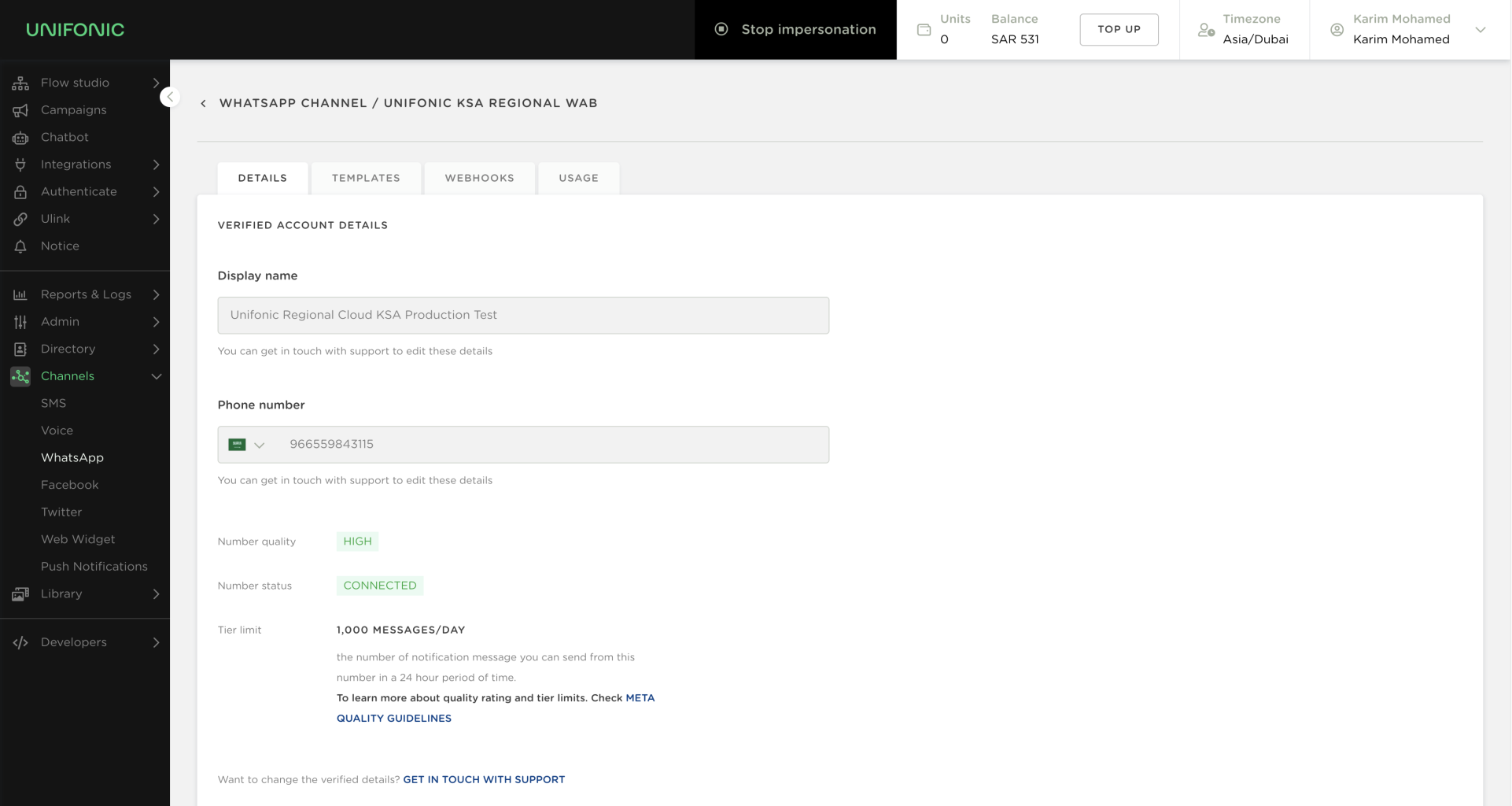
Use Meta's embedded signup flow to connect a WhatsApp Business Account (WABA) to Unifonic and access the WhatsApp Business Platform.
Prerequisites
- Facebook Business Manager access: You must be able to sign in to your company's account. If necessary, see Creating a Facebook Business Manager Account.
- An eligible phone number: Use a number that is not currently linked to WhatsApp and can receive an SMS or voice call. See the phone-number guide.
- Business information: Prepare the display name, legal address, and website.
Complete embedded signup
1. Sign in and connect Facebook
Sign in to your Unifonic account, go to Channels > WhatsApp, and sign in with the Facebook account connected to your Business Manager account.

2. Share the WABA with Unifonic
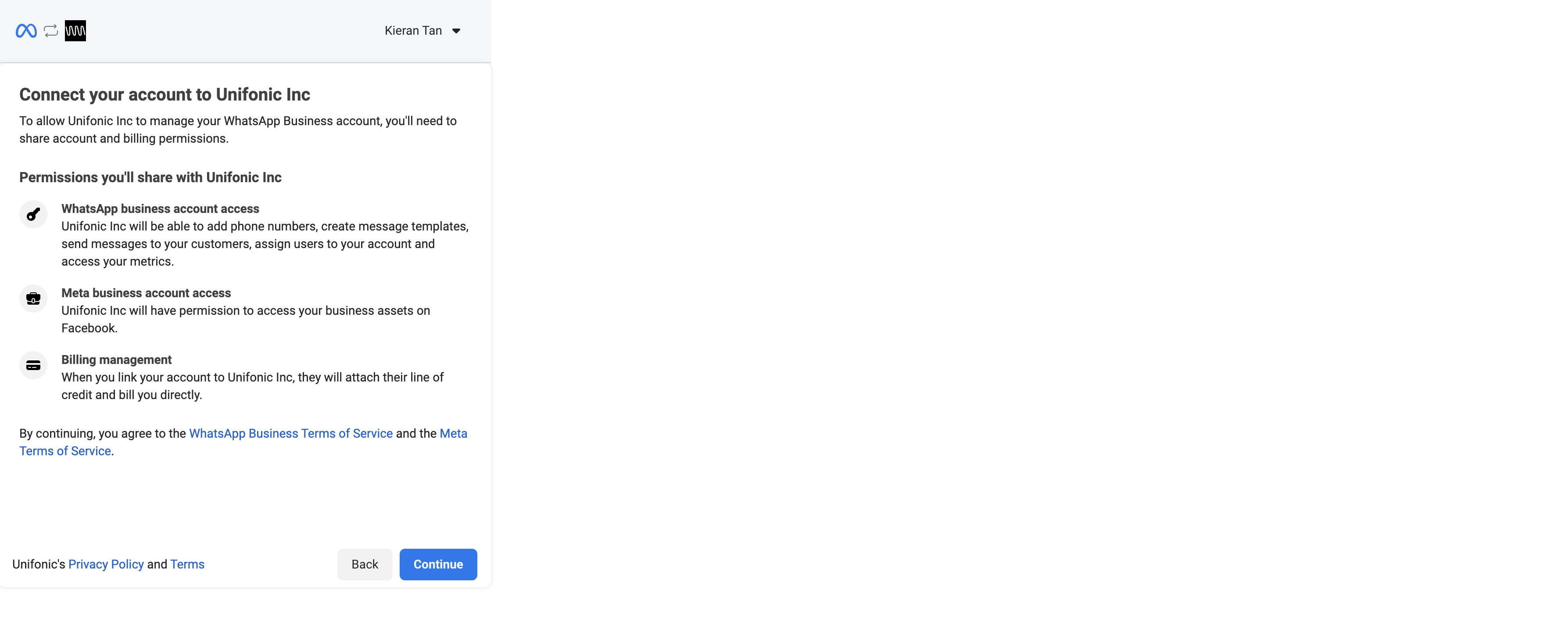
Grant Unifonic permission to manage the WABA.
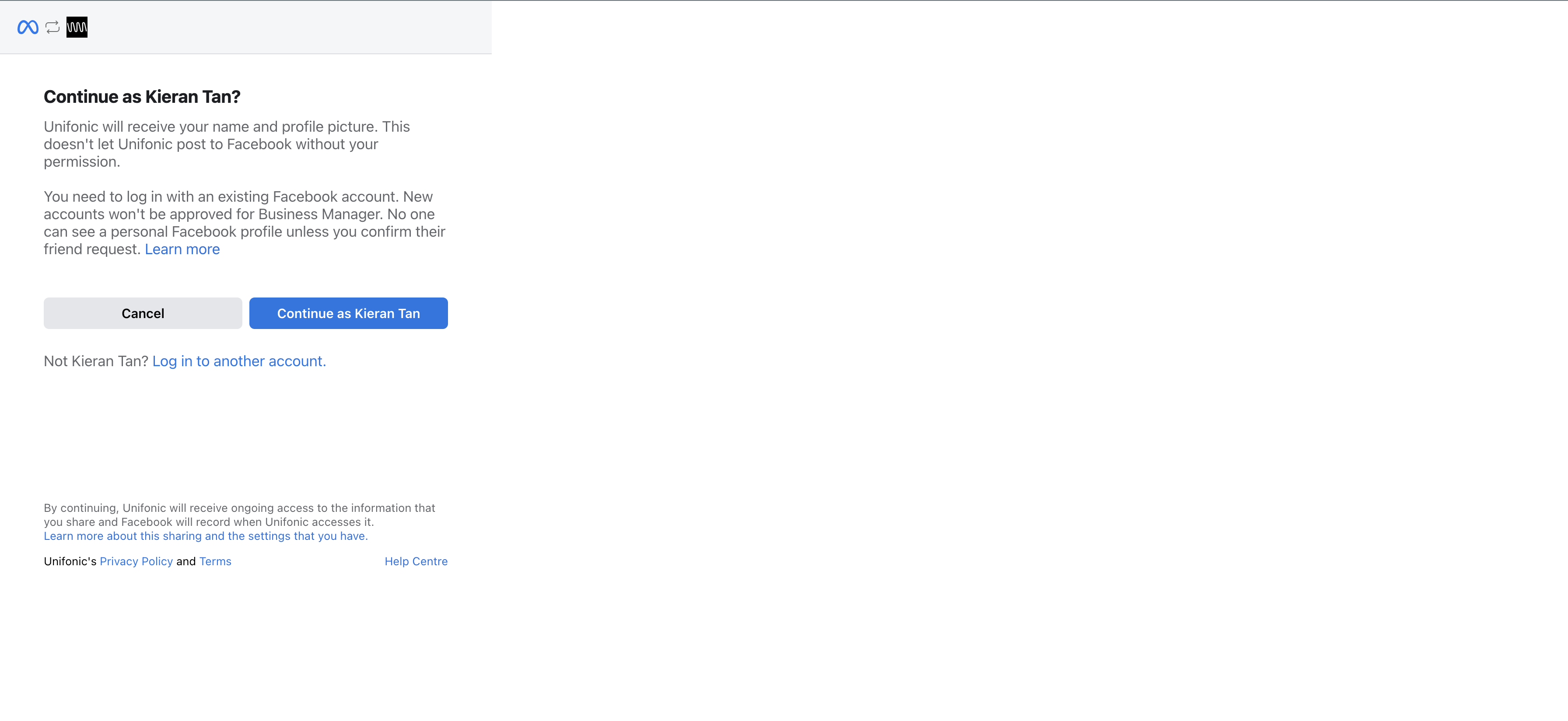
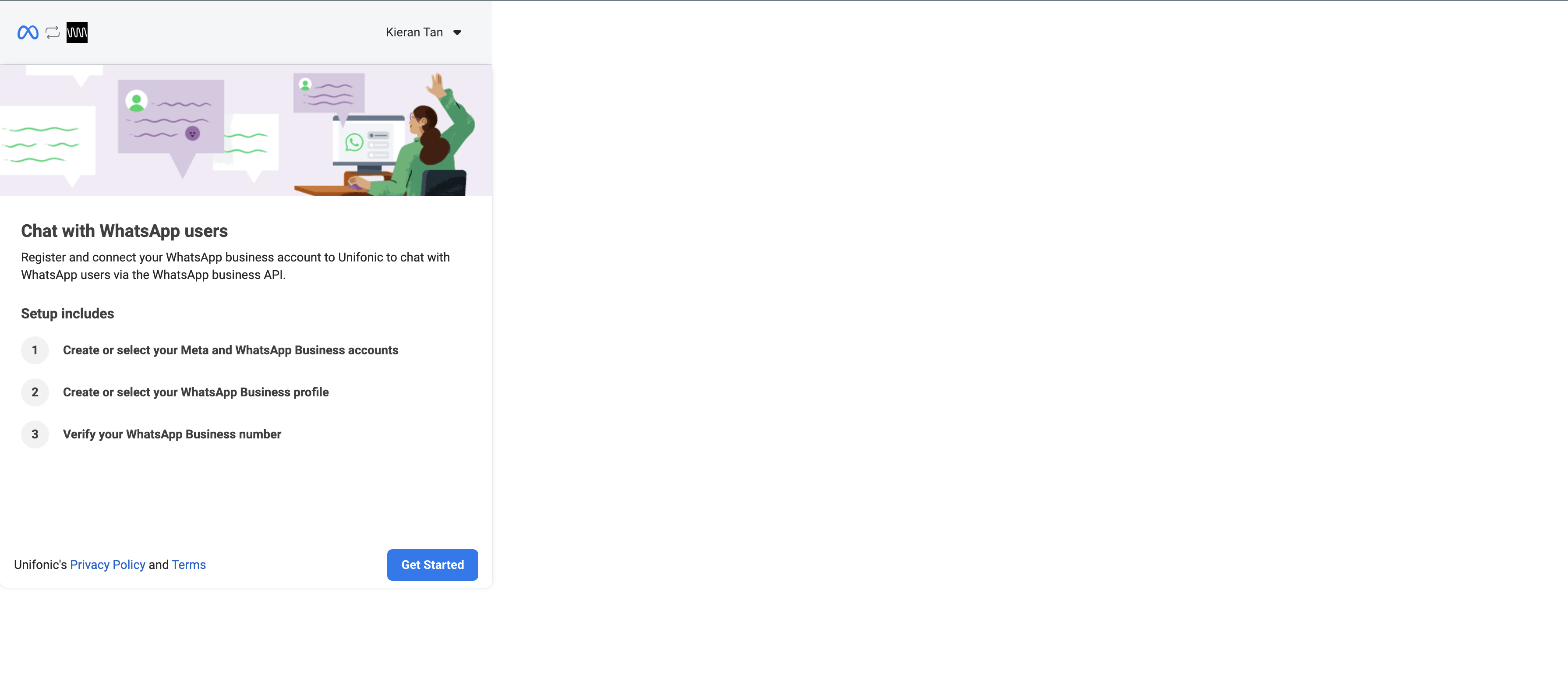
Select Continue and review the information prompt.
The permissions allow Unifonic to:
- Manage phone numbers and templates and send messages on your behalf.
- Manage billing. By default, the business uses Unifonic's line of credit and is billed by Unifonic.
3. Select a Business Manager account
If an account already exists, select it. You must be an administrator to set up its WhatsApp Business Accounts.
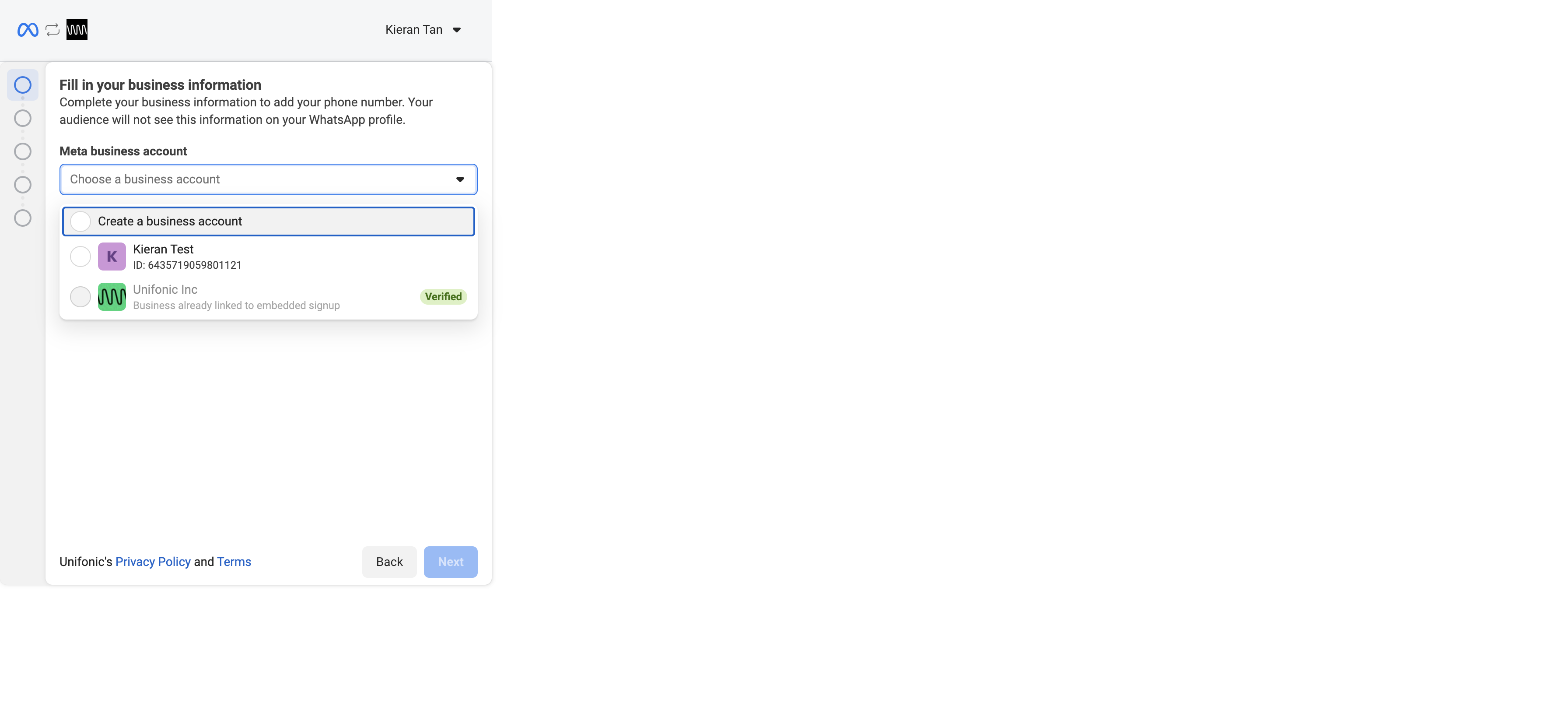
If no suitable account exists, create one and provide its name and billing time zone.

4. Create or select a WABA
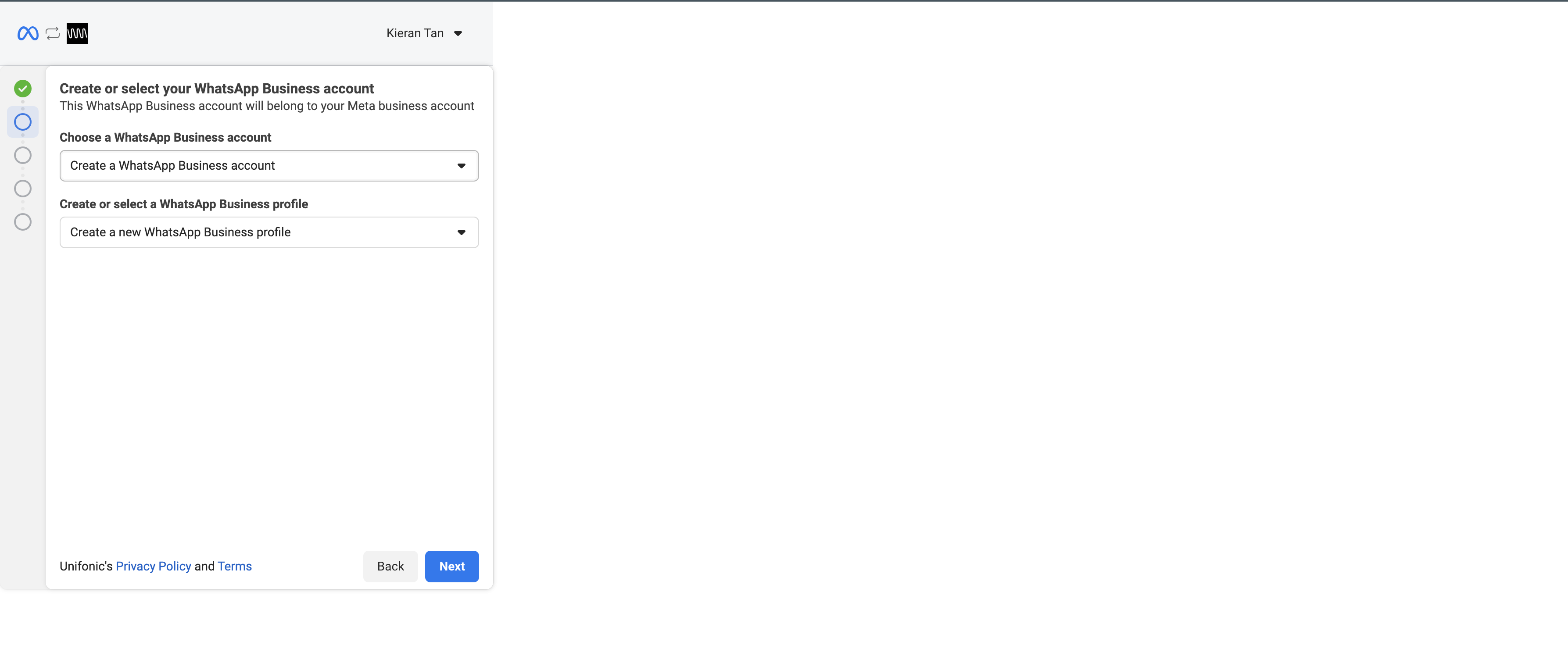
If no WABA exists in the selected Business Manager account, create a WABA and business profile.
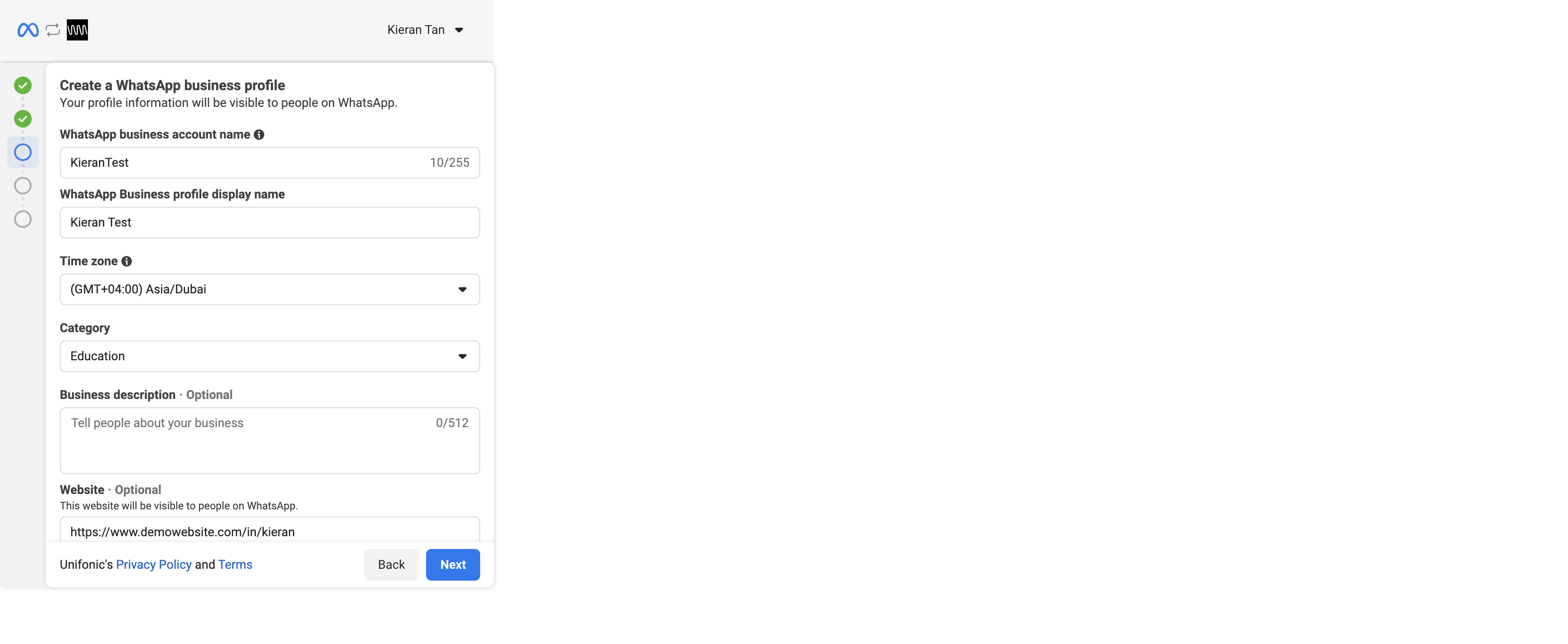
- Enter a display name that complies with the Facebook Display Name Guidelines.
- If the display name represents an agency, distributor, partner, parent company, or client, show the relationship clearly on both businesses' websites. If prompted, provide a website link that verifies the relationship. See WhatsApp Display Name and Phone Number.
- Select a category and enter an optional business description of up to 512 characters. Both are visible to customers.
5. Register a phone number
The number cannot be actively registered with WhatsApp Messenger or the WhatsApp Business app. Deactivate it there before registering it for the WhatsApp Business Platform.
- Use the E.164 international format.
- Ensure the number is internationally reachable.
- Keep it active so that it can receive the verification SMS or voice call.
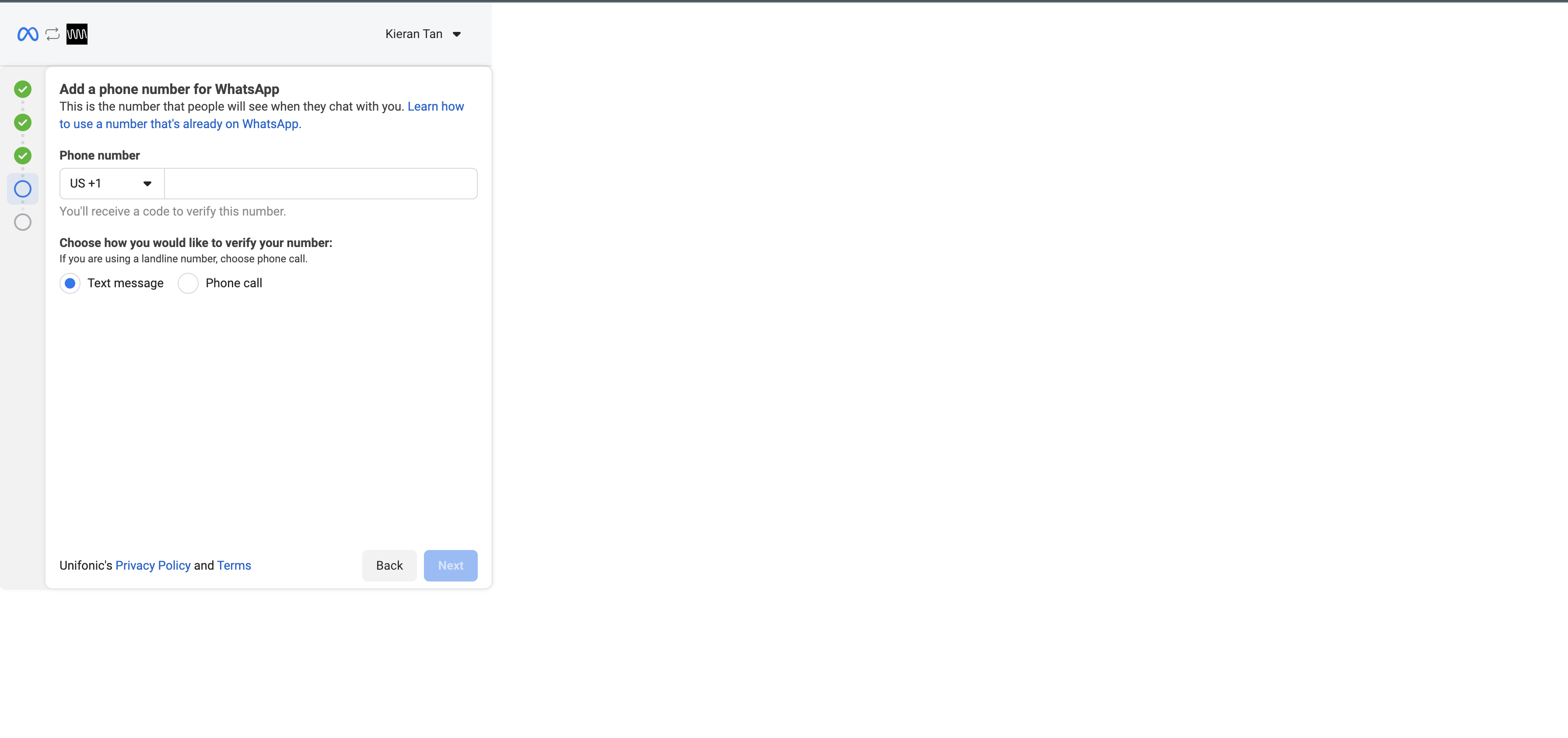
 | Phone-number considerations Temporarily disable IVR on a toll-free number so that WhatsApp can verify it by voice call. For a number migration from another provider, contact Unifonic Support for registration assistance. |
6. Verify the phone number
Request an SMS or voice call and enter the received six-digit verification code.
After verification, the business can use the trial experience. It can send business-initiated messages to 2 phone numbers and have 10 customer-initiated conversations during the first 30 days. The trial applies only to the first verified phone number for each WABA.
| Complete business verification If the business does not complete Business Verification within 30 days, Facebook disconnects the phone number. |
Trial tiers
| Tier | Business-initiated notifications | Customer service |
|---|---|---|
| Unverified trial | Up to 10 messages a day to 2 phone numbers using preapproved templates | Messages to 10 phone numbers |
| Expanded trial | Up to 10 messages a day to 2 phone numbers using preapproved templates | 1,500 customer-initiated conversations |
The expanded trial begins after the business submits its verification documents and Facebook screens them. A conversation is a 24-hour session of unlimited messaging. It begins when a business reply to a customer's message is delivered within the customer-service window. Webhook statuses that affect conversation monitoring are sent, delivered, and read.
Completion
After signup, the WABA appears in the Unifonic Console. Open it to review the account information.