This section explains how to sign in to your Unifonic account and reset your password if you no longer have access to it.
Sign In to Your Account
- Go to Unifonic Cloud.
- Enter your registered email address and password.
- Click SIGN IN.
- When prompted, enter your two-factor authentication (2FA) verification code.
- After the verification code is validated, you are signed in to the platform.
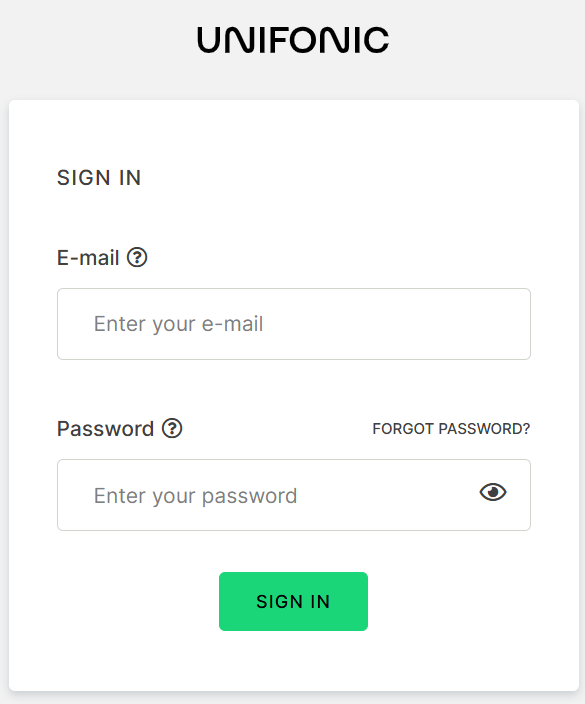
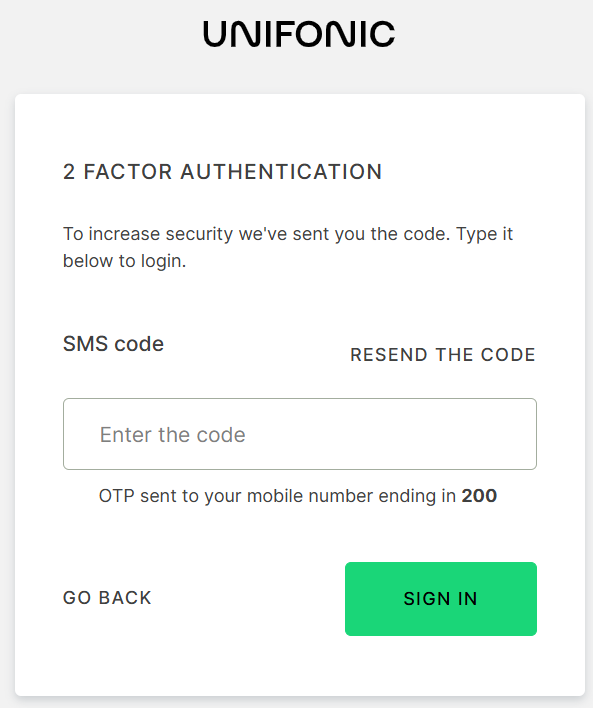
 |
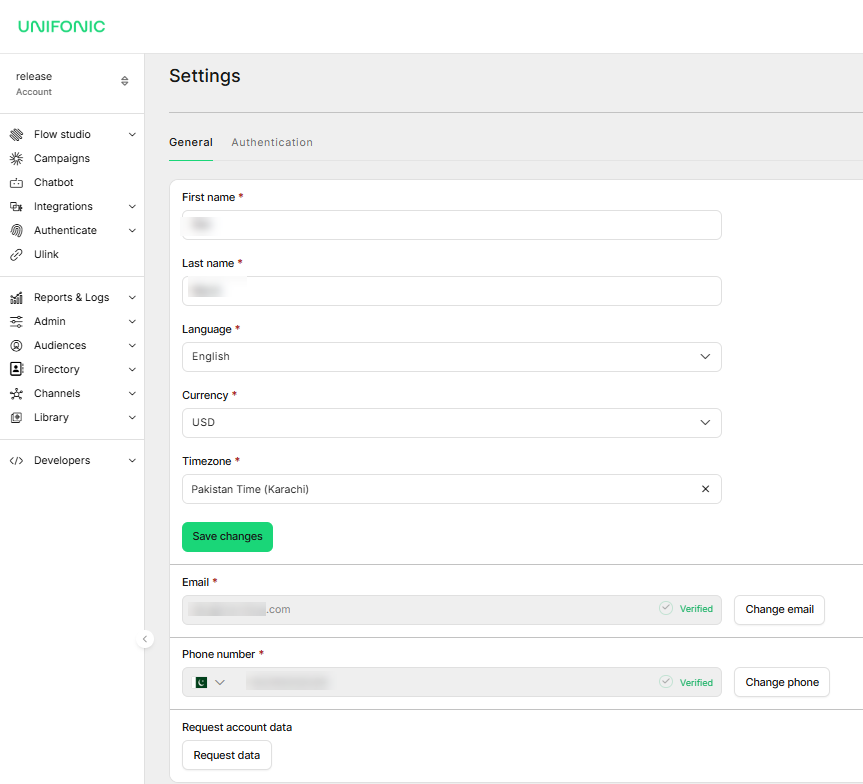
Tip You can receive 2FA verification codes through SMS or email. SMS is the default verification method and can be changed from your profile settings. |
Reset Your Password
- Go to https://cloud.unifonic.com
- Click Forgot Password.
- Enter your registered email address.
- Click Reset Password.
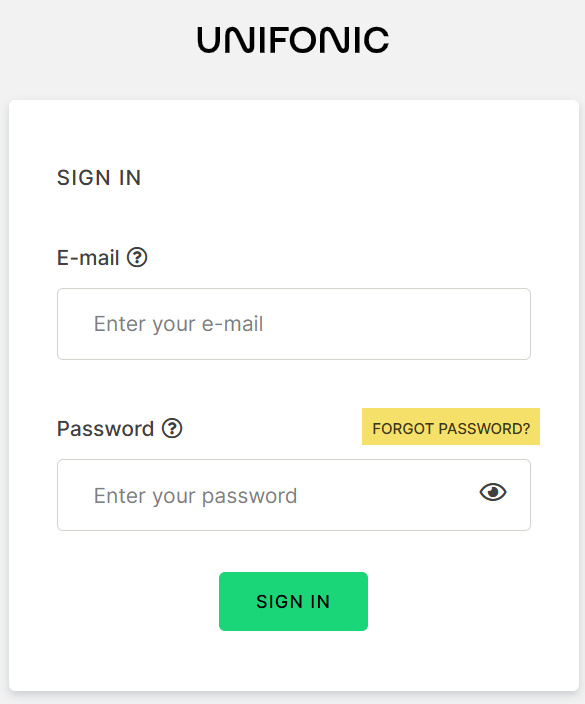
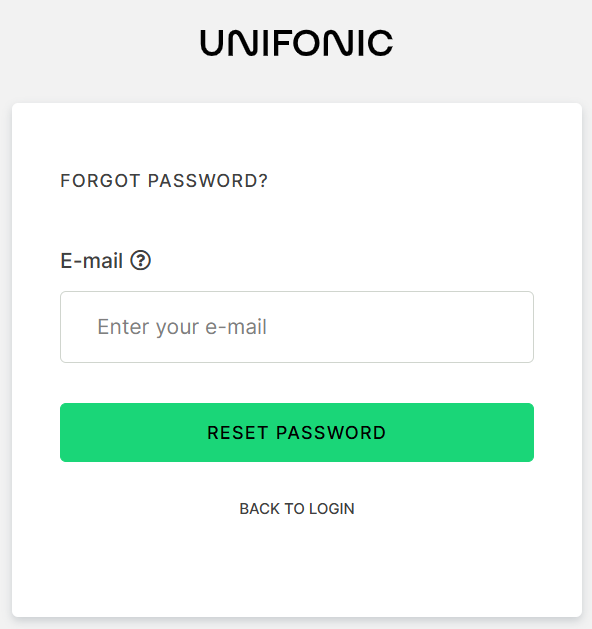
 |
Note If the email address is registered with Unifonic, you may be required to complete 2FA verification before receiving the password reset email. |
- After successful verification, a password reset email is sent to your registered email address.
- Open the email and click Link to reset credentials.
- Follow the instructions to create a new password.
 |
Success Once your new password is set, you can sign in to your account using your updated credentials. |