Verify your Facebook Business Manager account before using it with the WhatsApp Business Platform.
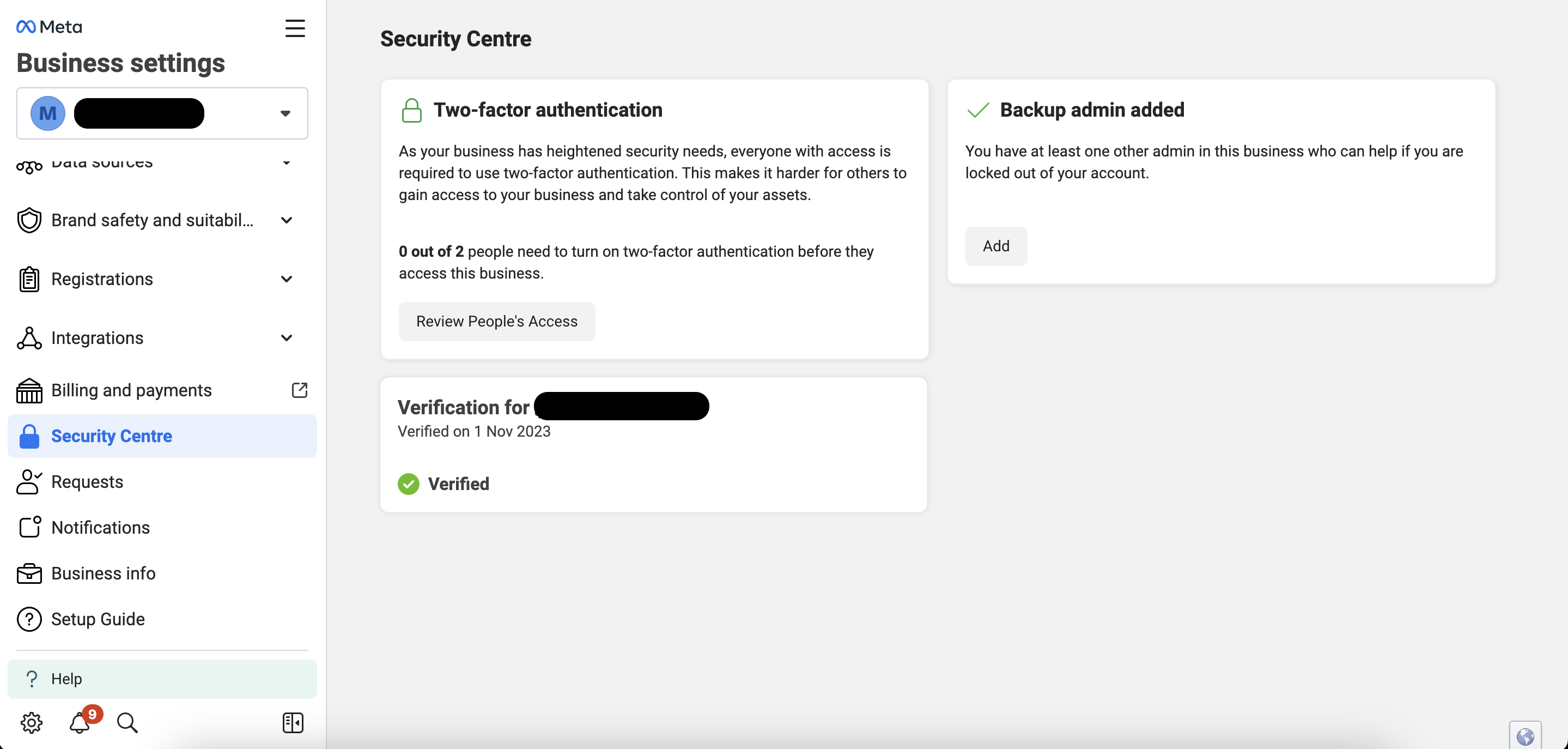
 | Check your verification status Open the Security Center to check whether your Facebook Business Manager account is verified.  |
Prepare your documents
Provide Meta with a current commercial registration that includes:
- Business name
- Address
- Phone number
Government entities may instead provide an official letter that:
- Uses the entity's official letterhead.
- Is stamped and signed by a senior government official, such as a minister or prime minister.
- Includes the business name, address, and phone number.
Verify the business
- Select the country in which the organization is registered.
- Enter the organization details exactly as they appear in the supporting documents. Use the same language as the documents—Arabic, English, or both. Differences can cause the request to be rejected.
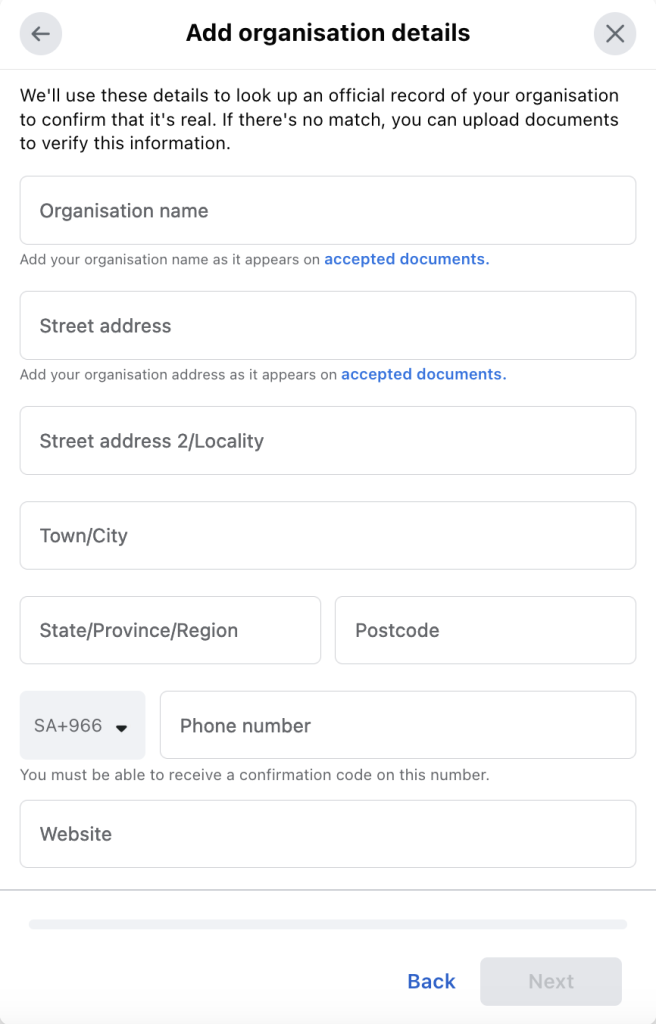
- Select a verification method.

- Upload the supporting documents.
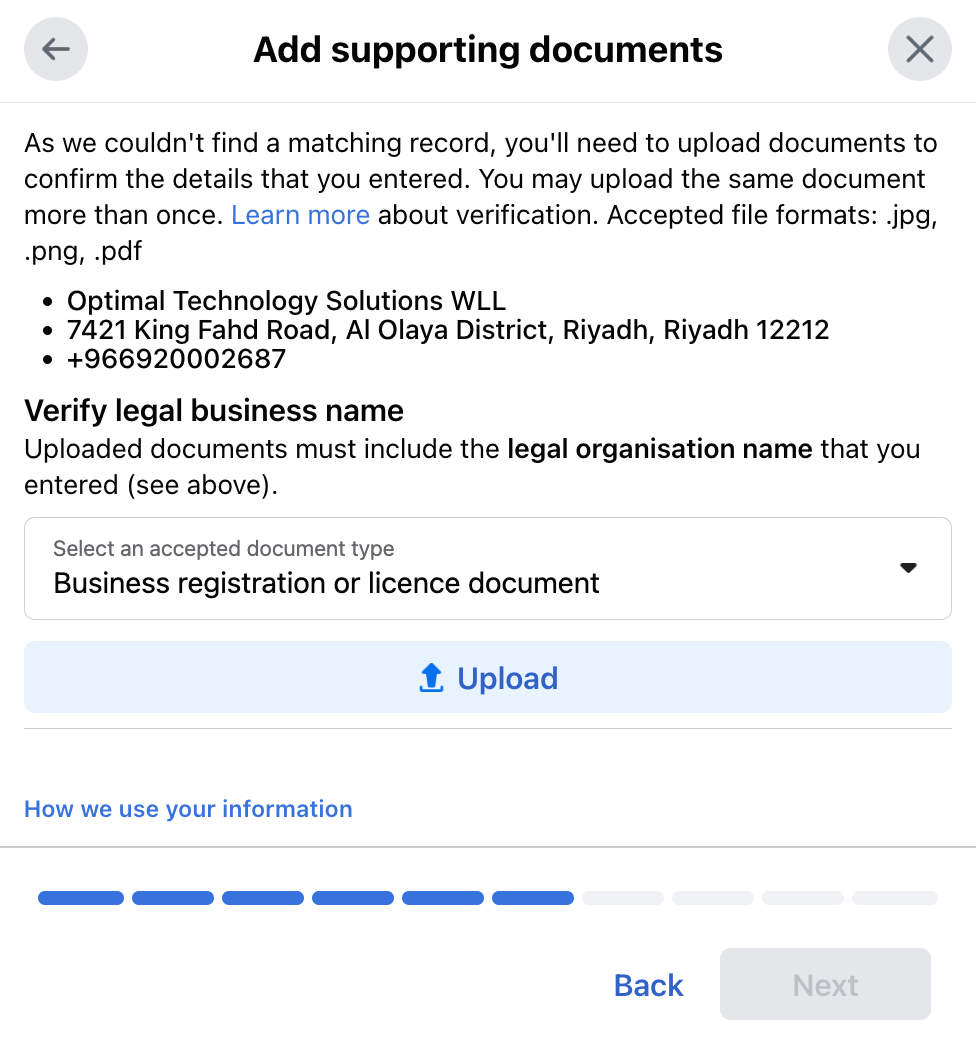
- Review the information and submit the verification request.
After Meta approves the request, the account displays a Verified status.
If Meta cannot verify the business, review Issues with Business verification.
 | Verification option is unavailable If the verification option does not appear in the Security Center:
 |