This report provides the user with full information about the sent messages along with the volume of those messages based on several business criteria as shown below.

|
Note
|
To view an SMS Traffic Report
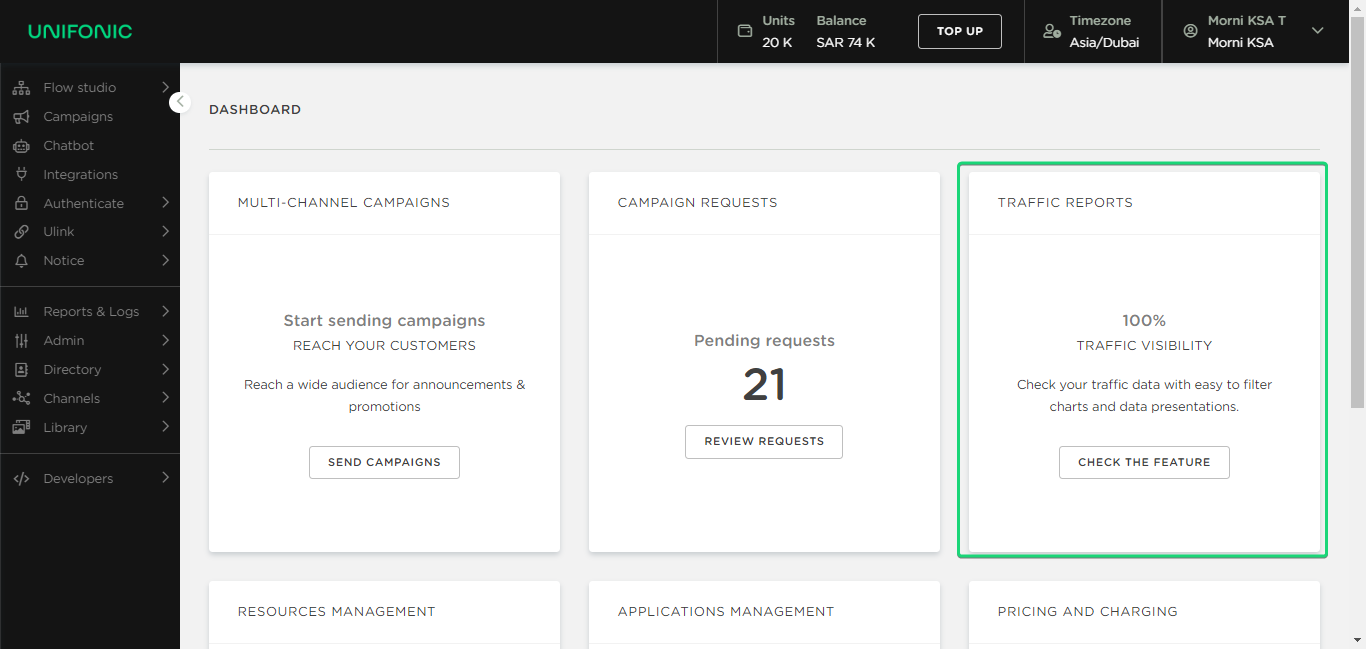
- Access the SMS Traffic Report page by navigating to the Dashboard page, and clicking on the Check the Feature button for the Traffic Reports.
- TheReports & Logs sections opens, select SMS Traffic Report.
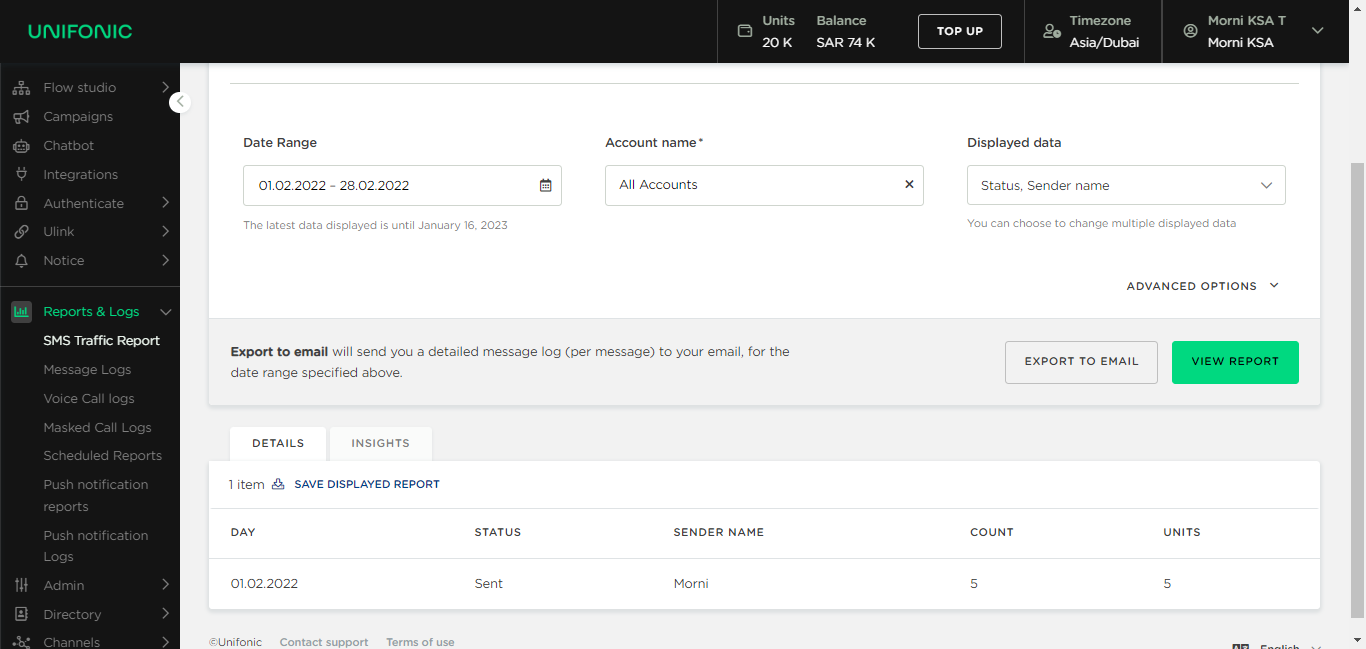
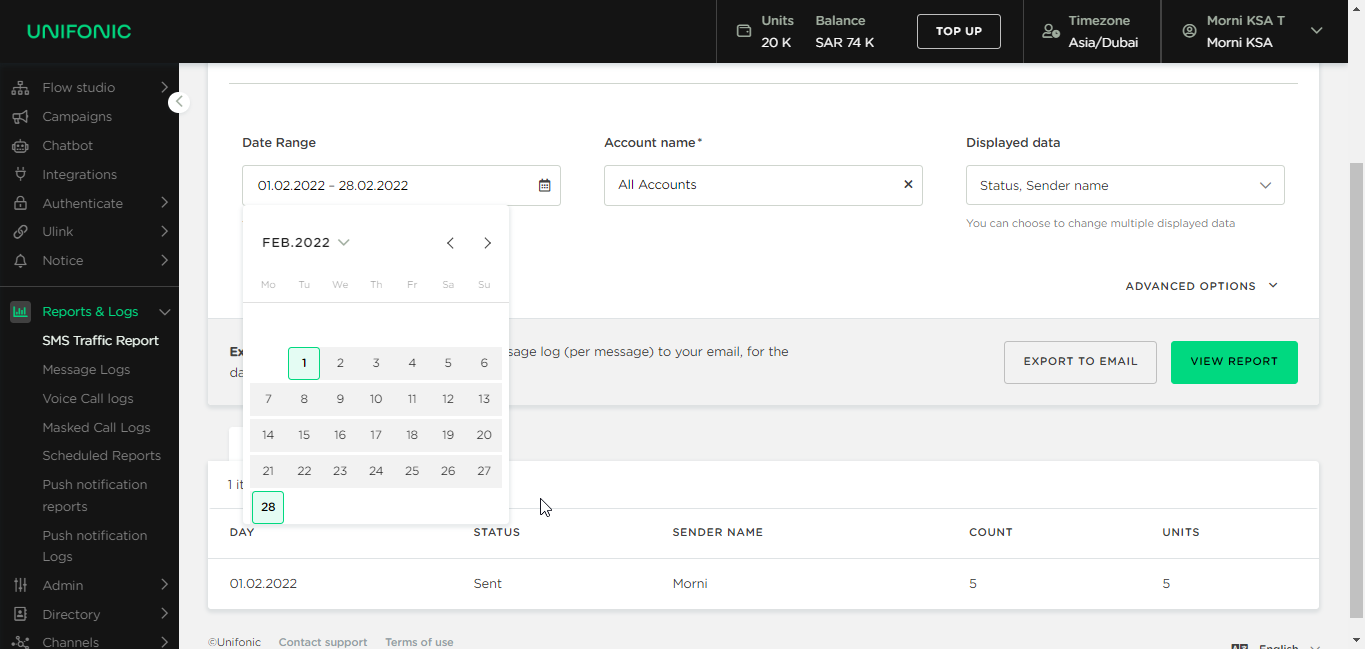
- Click the calendar icon, and select the date range for the data to be displayed.
|
|
Note A message is displayed below the Date Range box, indicating the threshold date on which the data is available. |
- From the Account Name drop-down list, select the account for the data to be displayed.
- From the Displayed Data drop-down list, select the box next to the required data to be displayed in the report.
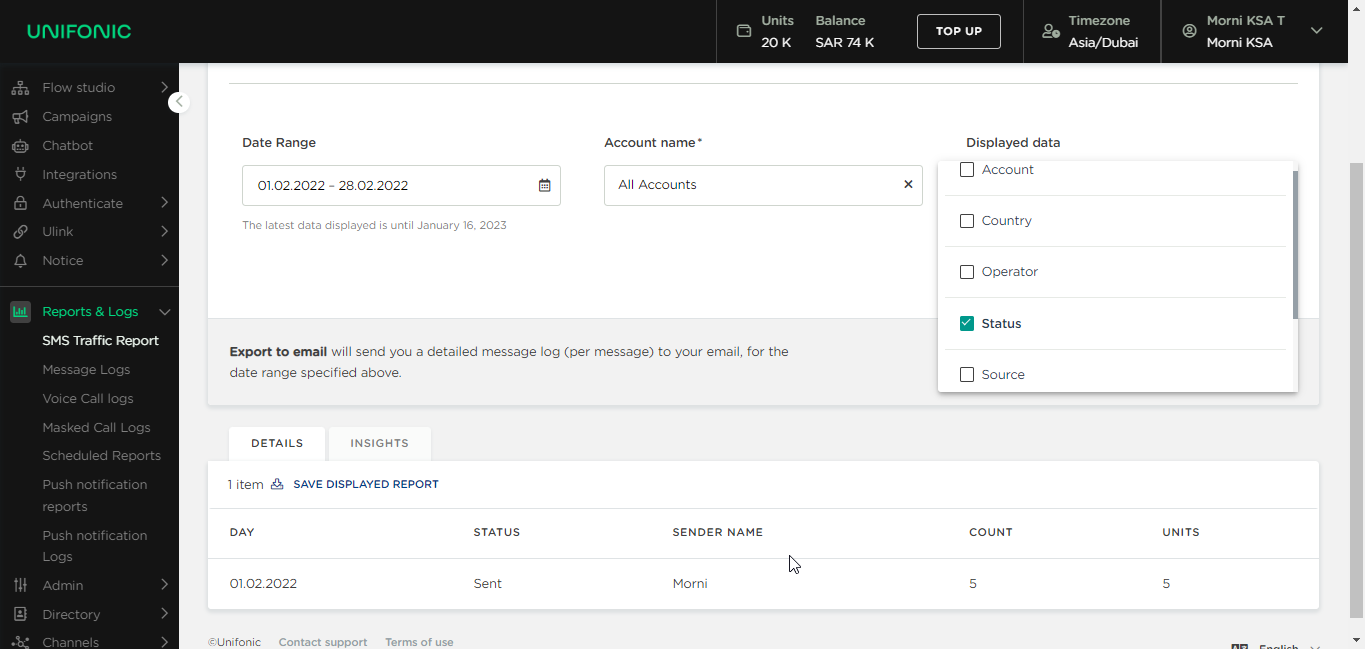
- Click View Report. The report will be displayed in the lower part of the page.
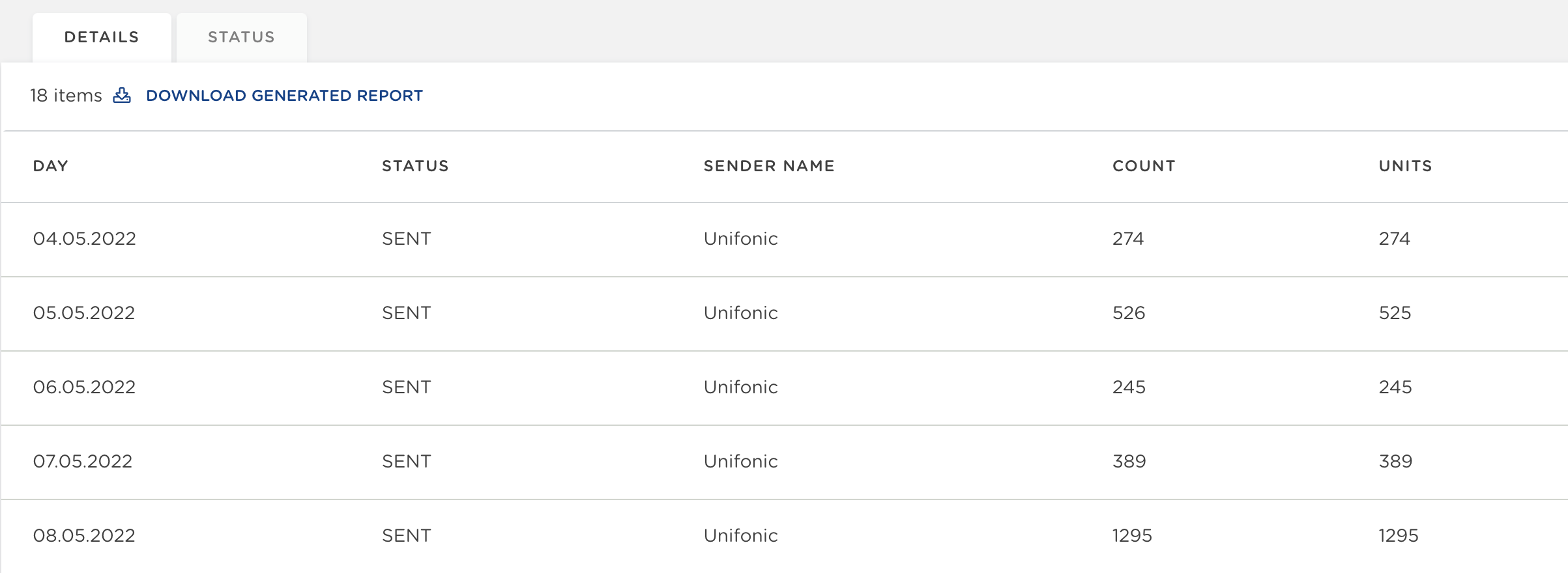
The report viewed displays the following
| Column name | Indication |
|---|---|
| Day | Indicates the day the sms was sent by the customer. |
| Status | _ Sent: Indicates that the sms has been sent successfully from Unifonic to the Operator (e.g: STC, Etisalat, etc.) - _Common* * Not sent: Indicates that there is an issue in sending the sms. |
| Sender name | Indicates the name of the sender |
| Count | Indicates the number of SMS sent |
| Units | Indicates the number of units inside the SMS. For example, if a message is larger than 160 English characters, the message will be split into more than 1 unit. Each unit is 160 characters or less. Another example is if a message is sent with 180 characters then the count = 1 ( 1 SMS ) and the units will be 2 units; the first unit is 160 characters, and the second will have 20 characters. |
Refining Reports Results
To refine the report's results
- Click Advanced Options, a group of filters and choices are displayed.
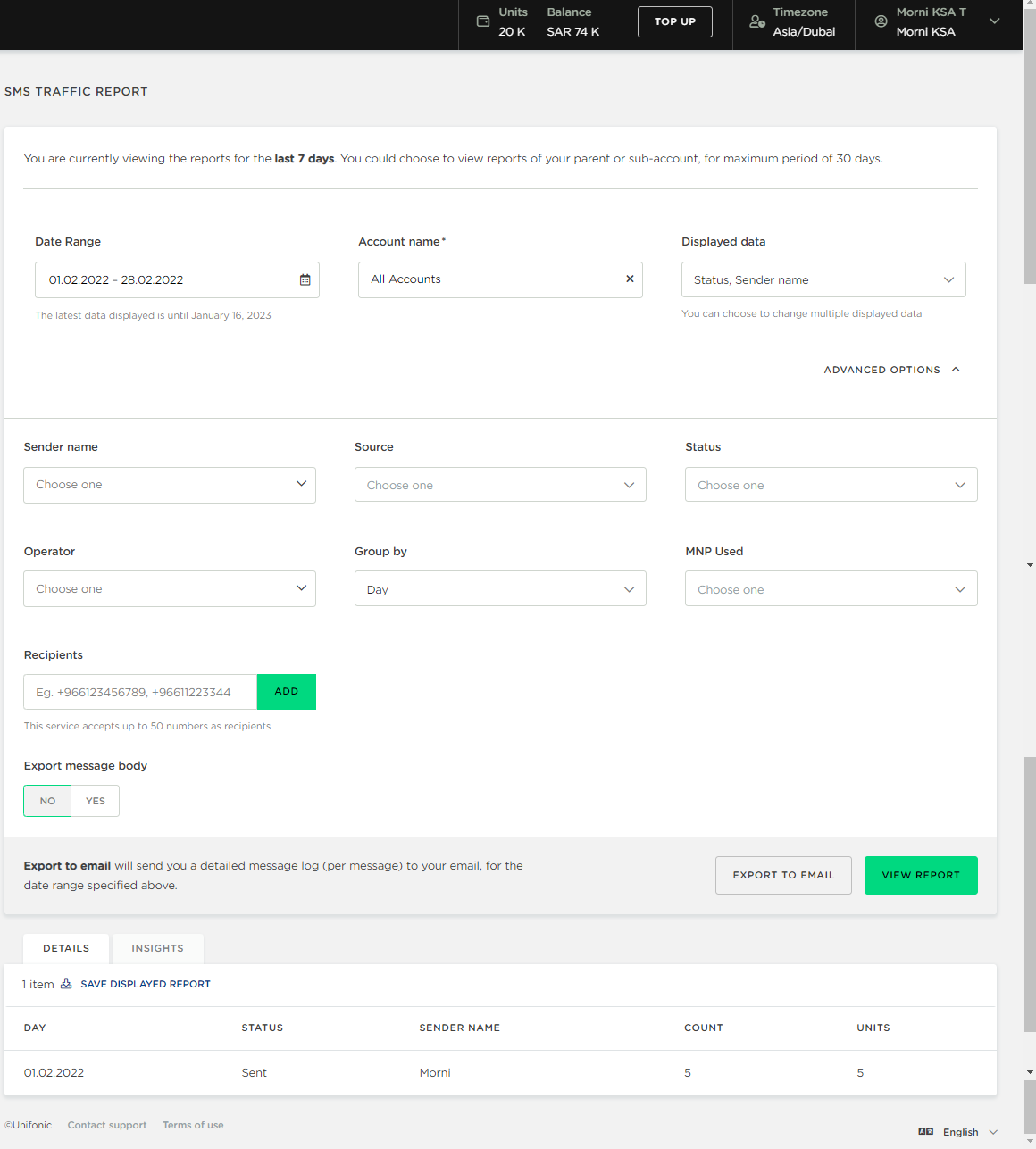
Reports can be refined with any of the following or all of them:
| Label | Description |
|---|---|
| Sender Name | The name displayed sending the SMS. |
| Source | The source of the message whether its HTTP or SMPP |
| Status | _ Sent: Indicates that the sms has been sent successfully from Unifonic to the Operator (e.g: STC, Etisalat, etc.) - _Common* * Rejected: Indicates that there is an issue in sending the sms. |
| Operator | The operator receiving the message |
| Group by | Viewing the messages grouped by day, week, month or year. |
| Message content | Messages can be filtered by message content. |
| Recipients | Recipients numbers, up to 50 numbers can be added. |
| MNP used | Whether the MNP is being used while sending the SMS or not. |
| Export message body | Yes: The content of the messages sent will be generated and displayed in the report. No: The report will be generated without the display of the messages. |
| Encrypted message body (This toggle button is displayed when the export message body is selected as Yes.) | Yes: Even messages that are encrypted will be exported to the report. No: Encrypted message will not be generated in the report |
|
|
Note A file with the data on the interface can be downloaded at anytime by clicking, Download Generated Report. |